

Introducing Segments: Stop Sending Every Campaign to Every Customer
Segments let you save a rule over your customer list and attach it to a campaign, so review requests reach the right people instead of everyone. Here is how they work.
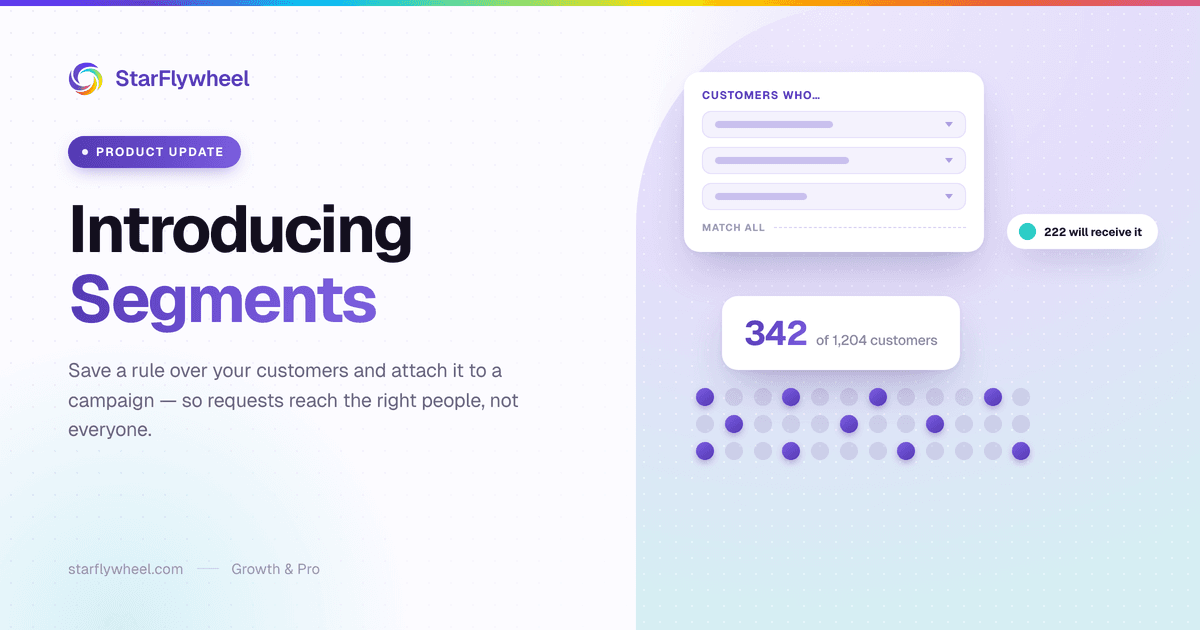
Every Campaign Used to Go to Everyone
Until now, a campaign in StarFlywheel had a channel, a template, and a review link — but no audience. Deciding who actually received it happened somewhere else entirely: either by hand on the Customers page, where the selection vanished the moment you left, or automatically, where every newly registered customer was enrolled into every active campaign in your organization.
That second behavior is the one that quietly caused problems. If you were running three campaigns, a new customer received all three. If you built a campaign for one location, everyone got it. And if you wanted to reach the same group again next month, you rebuilt the list from scratch.
Segments fix this. A segment is a saved, named rule over your customer list. Attach it to a campaign as that campaign's audience, and only matching customers receive it — on the manual send path and the automatic one alike.
A Segment Is a Sentence
Building one reads as a sentence rather than a form. The wizard puts a heading over the rule list — Customers who… — and every rule completes it:
Customers who
have a phone number
are opted in to SMS
were added in the last 30 days
There are fifteen options, grouped into five kinds:
- Contact — have (or do not have) an email address; have (or do not have) a phone number.
- Consent — are (or are not) opted in to email; are (or are not) opted in to SMS.
- Tags — are tagged, or are not tagged, with any tag you have created.
- Date added — were added in the last N days, or were added before a specific date.
- Engagement — have never been sent a request; were sent a request but never clicked; have clicked a review link.
A segment holds up to ten rules, combined with a single toggle: match all of them, or any of them. There are no nested groups, and that is deliberate — one toggle covers the case that matters ("opted in to email or opted in to SMS") without turning the builder into a query language.
One detail worth knowing: tag rules store the tag's ID, not its name. Rename a tag and every segment using it keeps working.
You See the Count Before You Save
The number of matching customers updates live beside the rules as you build, alongside a browsable table of who actually matches. Add a rule, watch the count drop, and see which people fell out.
This matters more than it sounds. The failure mode with any rule builder is saving something that reads correctly and means something else — you select "are not opted in to SMS" while picturing the opposite group, and nothing anywhere tells you. A live count and a visible list turn that from a silent mistake into an obvious one.
A segment that matches zero customers is allowed, incidentally. You get a warning, not an error — sometimes an empty segment is simply one you built ahead of the customers who will fill it.
When You Just Want to Pick People
Not every group is a rule. Sometimes you have twelve specific customers in mind and no property that distinguishes them.
For that, the Audience step offers Pick manually: search your customer list and check the people you want. What happens underneath is worth understanding, because it is not a hidden second system. Saving creates a tag named after your segment, applies it to everyone you picked, and stores a single rule — are tagged "Spring VIPs". The segment stays an ordinary rule, and your picked list becomes an ordinary tag you can edit from the Customers page afterwards, adding or removing people without reopening the segment.
Two consequences follow from that design. If you already have a tag with the name you chose, the wizard warns you before saving — because applying it would sweep in everyone already carrying that tag, which is wider than the group you selected. And manual picking is offered when creating a segment, not when editing one; afterwards you manage membership through the tag itself.
Saved segments also appear on the Customers page beneath the built-in filters, so a segment you built for a campaign doubles as a way to look at that group whenever you want.
Attaching a Segment to a Campaign
The campaign wizard has a new Audience step. Pick a segment, see how many people it currently resolves to, and continue. Leave it unset and the campaign behaves exactly as campaigns always have — org-wide — so nothing you already have changes until you choose to change it.
The Audience step also does something we think is the most useful part of the whole feature. If the campaign's channel does not match the segment's consent, it tells you before you send:
⚠️ This is an SMS campaign. 120 of 342 members have not opted in to SMS and will be skipped. 222 will receive it.
Those recipients are skipped and counted, never silently dropped. The same rule is enforced on the server, not just displayed — the warning is advice, the enforcement is real. Consent is not a formality here: for SMS in particular it is the difference between a review program and a legal problem, which we go into in the review request templates guide.
New Customers Join Automatically
A segment is a rule, not a snapshot. When a new customer is registered and matches a targeted campaign's segment, they are enrolled automatically — the same auto-enrollment that already existed, now filtered instead of indiscriminate.
Membership resolves live on every read, too, which has a pleasant consequence: your segments cannot go stale. There is no list to refresh and no nightly rebuild. Someone who opts out of SMS this afternoon leaves your SMS segment immediately. Someone you soft-delete leaves it on the next evaluation. The rule is the membership.
Five Segments Worth Building Today
If you want somewhere concrete to start, these five earn their keep for most businesses.
- Never contacted — have never been sent a request. Almost every account has a backlog of customers nobody ever asked. This is usually the single biggest pool of uncollected reviews you own.
- Went quiet — were sent a request but never clicked. A different message works better here than the one that already failed to land.
- SMS-reachable — have a phone number and are opted in to SMS, matching all. Attach it to your SMS campaign and the skip warning goes to zero.
- New this month — were added in the last 30 days. A rolling window, not a frozen date: the cutoff is recalculated every time the segment is read, so it keeps meaning "the last 30 days" forever.
- Your regulars — are tagged with whatever you use for repeat customers. Established, engaged customers are the ones whose reviews carry the most weight, as our guide to asking for reviews covers.
Limits and Availability
Segments are available on Growth (up to 10 segments) and Pro (up to 20). Free, Lite and Standard don't include segments: the Customers page keeps its built-in filters and shows an upgrade prompt.
Two other numbers worth knowing. A segment holds a maximum of ten rules. And a single bulk send is capped at 1,000 recipients per run — if your segment is larger, the first thousand are queued and the interface reports exactly what is left ("Queued 1,000 of 2,340 — run again to continue") rather than silently truncating the rest.
If you downgrade, existing segments are preserved and campaigns already pointing at one keep working. You simply cannot create new ones until you upgrade again.
Start With One
Do not model your entire customer base this week. Open Segments, build "have never been sent a request," and look at the number. For most accounts it is larger than expected, and it is the fastest review growth available to you — people who already know you and have never once been asked. For the message itself, our guide on how to get more Google reviews covers wording and timing, and if you run several locations, see multi-location review management.
Send review requests to the right customers.
Segments are available on Growth ($49/month) and Pro ($99/month) — build a rule once and every campaign targets it automatically. StarFlywheel sends customers to the review platforms that matter to you and tracks your Google reviews automatically — free to start, paid plans from $9/month.
Ready to grow your reviews?
Start building your review flywheel today. Free plan available, no credit card required.
Start Free