

Google Business Profile Optimization: A Checklist for Local Service Businesses
A practical, setting-by-setting checklist for your Google Business Profile: categories, services, service areas, hours, photos, attributes, your review link, the end of Q&A, how Google's AI features summarize your profile, keeping it current, and multi-location notes.
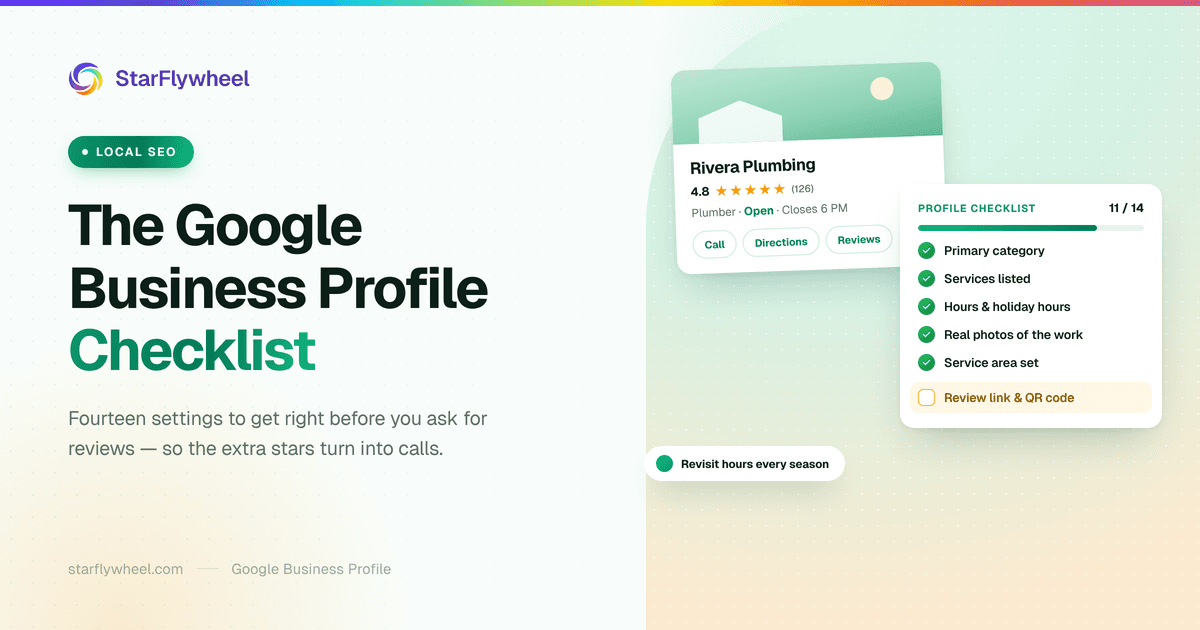
Your Profile Is the Page Customers Actually See
A homeowner searches "electrician near me" and gets a map with three businesses under it. Before anyone visits a website, they look at the name, the star rating, the review count, whether the business is open, and maybe a photo or two. Then they tap call or move on.
That panel is your Google Business Profile. For most local service businesses, it gets more eyes than the website ever will. And a surprising number of profiles are half-finished: the wrong primary category, hours from two years ago, three photos of a logo, no services listed.
This is a practical checklist for fixing that, written for service businesses: plumbers, dentists, salons, auto shops, cleaners, and anyone else whose customers find them on a map. Work through it once properly, then come back to the parts that need regular attention. Settings move around in Google's interface, so we describe what to look for rather than exact menu paths. Updated October 2026: the old Q&A section is being retired, and Google's AI features now summarize profiles and reviews, so we added what that means for you.
1. Get the Primary Category Right
Your primary category is the single most important setting on the profile. It tells Google what you are, and it shapes which searches you show up for. Pick the most specific category that describes your main business: "Plumber" rather than "Contractor," "Pediatric dentist" rather than "Dentist" if that is truly most of your work.
Think about what most of your revenue comes from, not what you would like to do more of. If you are an HVAC company that occasionally does plumbing, your primary category is HVAC.
Secondary categories
Google lets you add additional categories for services that are a real part of your business. A plumber who does water heater installs and drain cleaning can add those. A salon that also does nails can add a nail salon category.
Add only categories you actually serve. Stacking loosely related categories does not reliably help and can confuse what your profile is about. A good test: would a customer who found you under that category be surprised by what you do?
2. List Your Services
The services section lets you name the specific jobs you do, often with a short description and optional price. Google suggests some services based on your categories; add the rest by hand.
Use the words your customers use. "Water heater replacement," "emergency drain unclogging," "teeth whitening," "brake pad replacement." If you list prices, keep them accurate or use "starting at" wording you will honor. Services are also one of the places Google reads to understand what you do, so a complete list is worth the twenty minutes.
3. Service Area or Address: Choose Honestly
This is the setting service businesses get wrong most often, and it can lead to suspension.
- Customers come to you (a dental office, a salon, an auto shop): show your address.
- You go to customers and do not serve people at your location (most plumbers, cleaners, mobile mechanics): set a service area and hide your address. Google's guidelines expect this, and showing a home address is both a privacy problem and a common reason for profile issues.
- Both (a shop that also does house calls): you can show the address and set a service area.
Define the service area by the cities, ZIP codes, or regions you really cover. Do not list every town in the state hoping to rank everywhere. Where you rank is driven mostly by where the searcher is, and a sprawling area does not change that.
Never use a virtual office, a mailbox service, or a coworking desk you do not staff as your address. Google's guidelines do not allow them, and they are a classic trigger for verification problems.
4. Hours, Special Hours, and More Hours
Wrong hours cost you customers in the most frustrating way: they show up or call when you are closed, and some of them leave a review about it.
- Regular hours should match when you answer the phone or open the door.
- Special hours cover holidays and one-off closures. Set them a week or two ahead of Thanksgiving, Christmas, and July 4th. Google sometimes prompts you to confirm holiday hours; do it.
- More hours (where your category supports them) let you list things like emergency service hours separately from office hours. For a 24/7 emergency plumber with a 9-to-5 office, that distinction matters.
5. Photos That Show the Real Business
Photos are what make a profile feel like a real business rather than a listing. Customers look at them, especially when choosing between businesses with similar ratings.
What to upload:
- Logo and cover photo. A clean logo and a cover photo that shows your work or your space.
- Your team. Technicians by the van, the front desk, the people a customer will actually meet.
- The work. Before-and-after shots, a finished install, a clean treatment room. For trades, a tidy job site says more than any slogan.
- The location, if customers visit: the storefront from the street and the entrance, so people recognize it when they arrive.
Skip stock photos. Add a few new photos every month rather than fifty once. Customers can also upload photos to your profile; check them occasionally and report any that are inappropriate.
6. Write a Plain Business Description
You get up to 750 characters. Use them to say what you do, who you serve, where, and what makes you different, in plain language.
A good description reads like this: "Family-owned plumbing company serving Orlando, Kissimmee, and Winter Park since 2009. We handle emergency repairs, water heater installs, and drain cleaning, with licensed plumbers on call 24/7." It does not read like a list of keywords, and it does not include links or promotions, which Google's guidelines do not allow in the description.
7. Fill In Attributes
Attributes are the small facts Google shows on your profile: wheelchair-accessible entrance, accepts credit cards, online appointments, onsite services, and identity attributes such as veteran-owned, women-owned, or Latino-owned where available. Which ones you can set depends on your category and country.
Fill in everything that is true. Attributes help customers filter and decide, and some of them show up directly in search results. Do not add ones that are not true; customers can suggest edits, and a false attribute is an easy way to get a bad review.
8. Get Your Review Link and QR Code
Google gives every profile a direct link that opens the review form, along with a QR code version of it. You will find it in your profile tools, usually labeled something like "Ask for reviews" or "Get more reviews."
That link is the single most useful thing on this checklist for growing reviews. It removes the search-find-scroll-tap steps that make customers give up halfway. Put it in your follow-up texts and emails, on your invoices, in your email signature, and on a printed card or sticker. Our guide to the Google review QR code covers printing and placement.
Having the link is not the same as using it. The businesses with the most reviews ask every customer, at the right moment, every time. Our guides on how to get more Google reviews and the best way to ask customers for reviews cover the timing and wording. Ask everyone, not just the customers you expect to be happy, never offer anything in exchange, and do not ask customers to mention a service, keyword, or staff member by name; all three break Google's rules.
9. Post Updates (Lightly but Regularly)
Google posts let you publish short updates, offers, and events that appear on your profile. They are not a major ranking lever, but they show the business is active and give customers a reason to pick you over a profile that has not changed since 2022.
Once or twice a month is plenty for most service businesses. Good topics: a seasonal reminder ("book your AC tune-up before the first heatwave"), a new service, a team member who joined, or a recent job with photos. Keep each post short and specific.
10. Questions and Answers: Being Replaced by AI Answers
Google's old questions-and-answers section, where anyone could ask or answer a question on your profile, is being retired. Google discontinued the Q&A API on November 3, 2025, and posted a heads-up about changes to the Q&A feature in its Business Profile community. Whitespark reported in January 2026 that on many US profiles the Maps app now shows suggested questions with AI-generated answers instead, and that not every business category gets them.
You cannot write those AI answers yourself. Reports say they draw on your profile details, reviews, photos, and website, so the practical move is to put the answers there: hours, service area, prices or "starting at" ranges, payment options, and policies in your profile fields and services, and a plain FAQ page on your website. If your profile still shows the old Q&A, check it for wrong answers from strangers.
11. Keep NAP Consistent Everywhere
NAP is your business name, address, and phone number. It should match across your Google profile, your website, Yelp, Facebook, Apple Maps, Bing, industry directories, and anywhere else you are listed. Inconsistent details make it harder for search engines to be confident about your business and confuse customers who find an old number.
- Name: use your real business name, exactly as it appears on your signage and paperwork. Do not add keywords or city names to it ("Smith Plumbing - Best Emergency Plumber Orlando"). Keyword-stuffed names break Google's guidelines and are a common reason for suspensions.
- Address: pick one format (Suite vs. Ste.) and use it everywhere.
- Phone: use a local number that rings at the business. If you use call tracking, keep your main number listed as the primary.
When you move or change numbers, update Google first, then work through the other listings. Old directory listings are the usual source of stale information. Our article on reviews and local SEO covers how consistency and reviews work together for map rankings.
12. Respond to Reviews
Replies to reviews show up on your profile under each review, and future customers read them. A short, specific thank-you to a happy customer and a calm, useful reply to an unhappy one both tell readers what it is like to deal with you.
- Reply to negative reviews within a few days, without arguing. Our guide to responding to negative reviews has templates.
- Reply to positive reviews too, briefly and specifically. Name the service or the team member when you can.
- If a review looks fake, report it and still reply calmly. Our guide to removing fake Google reviews walks through the process.
13. Avoid Verification Pitfalls
A profile that is not verified cannot be fully managed, and verification is where many owners get stuck. Google decides which verification method to offer; video verification, where you record your location, signage, and proof of business, has become common.
- Have proof ready: signage or branded vehicle, business license, tools of the trade, and access to where you work.
- Do not change your name, address, or category while verification is pending. Edits mid-process can restart it or trigger a review.
- Do not create a second profile for the same business at the same address. Duplicates get merged or suspended. If you find an old duplicate, request ownership or ask Google to remove it rather than ignoring it.
- Keep ownership in the business. If an agency or former employee set up the profile, make sure the owner has primary ownership. Recovering a profile from someone who left is painful.
Google also discontinued its old chat feature and its simple Google-built websites in 2024. If your profile still points to a Google-built site, swap in your real website link.
14. Notes for Multi-Location Businesses
Every location that serves customers needs its own profile, with its own address or service area, hours, phone number, and photos. A single profile for three shops sends customers to the wrong one and spreads reviews in a way that helps none of them.
- Group locations under one business account so you manage them in one place. Google offers bulk verification for businesses with many locations.
- Keep the business name consistent across locations; the address does the distinguishing.
- Give each location its own review link and QR code, so a customer at the north shop reviews the north shop.
- Watch each location's rating and review volume separately. One weak location can hide behind a strong average.
Our guide to multi-location review management covers the review side in more depth.
15. How Google's AI Features Read Your Profile
More and more, customers see a summary of your business before they see your profile itself. Google's own documentation describes a few places this happens:
- Ask Maps. Google Maps has an AI-powered Ask Maps tool: people type a question, get an answer with links to its sources, and can ask follow-ups.
- Review summaries. In September 2025 Google made AI-powered summaries generally available in its Places API, including review summaries, powered by Gemini, that capture "the top themes from user reviews." That means apps built on Google Maps data can show a summary of what your reviews say, starting in a few countries.
- AI Overviews and AI Mode in Search. Google's guidance for site owners says there are "no additional requirements" or special optimizations needed to appear in them, and lists keeping your Business Profile information up to date among the basics that still apply.
You cannot edit an AI summary. What you control is the material it is built from: accurate profile details, a complete services list, real photos, and a steady flow of genuine reviews with thoughtful replies. Do not stuff keywords into replies or ask customers to use particular words; it breaks Google's rules and reads badly to people. Our article on Google reviews and AI search goes deeper.
16. Keep It Current
Google's local ranking help page says businesses with complete and accurate info are more likely to show up, and that inaccurate info can keep you out of relevant searches. With AI answers built from the same details, stale information now gets repeated, not just displayed.
- Put a 15-minute profile check on the calendar every quarter: hours, special hours, services, prices, photos, and links.
- Update the profile the same day you change hours, add a service, move, or change your phone number.
- Set holiday hours a week or two ahead.
- Read new reviews regularly. If several mention the same outdated detail (old hours, a service you dropped), fix the profile, since those details also feed summaries.
What StarFlywheel Does and Does Not Do Here
To be clear about it: StarFlywheel does not edit your Google Business Profile. Categories, services, hours, photos, descriptions, and verification all live in Google, and you manage them there.
What StarFlywheel helps with is the review part of this checklist:
- Asking. Email and SMS review requests (SMS with customer consent), QR codes with a printable QR kit, and automatic enrollment of new customers into campaigns, all pointing at your Google review link.
- Tracking. Your Google reviews sync into the dashboard on your plan's schedule, from monthly on Free to daily on Pro, with a negative-review alert when a sync finds one.
- Replying. On Standard and above, AI drafts a reply that you edit and paste into Google.
- Multiple locations. Per-location review links and QR codes, with up to 10 locations on Pro.
Fix the profile once using this checklist. Then keep reviews coming every week, because that is the part of the profile that never stops needing attention.
Profile done? Now fill it with reviews.
StarFlywheel sends customers to the review platforms that matter to you and tracks your Google reviews automatically — free to start, paid plans from $9/month.
Ready to grow your reviews?
Start building your review flywheel today. Free plan available, no credit card required.
Start Free